Tattoo Try On: See a Tattoo on Your Body Before You Ink
Choose a Design
Your Photo
No photo handy? Try one of ours:
Tattoo Try On at a Glance
Tattoo Try On shows a tattoo on a photo of your own body before you get it. You place a design on your photo, and AI renders it as a realistic healed tattoo in your skin, in the exact position, size and angle you chose.
How to use Tattoo Try On
- Upload a photo of the body part you want tattooed, or pick one of the sample photos.
- Choose one of 340 library designs in 10 styles, or upload your own design or a photo of a paper sketch.
- Drag the design into place; drag the corner handle, or pinch with two fingers, to resize and rotate it. Once the skin is found, the design shows on bare skin only and can be wrapped around the limb.
- Download the free preview as a PNG, or press "Make it look real" to render the tattoo with AI and compare the before and after with the slider.
- Time
- A Tattoo Try On render usually takes about 15 to 30 seconds. Placing the design is instant and happens in the browser.
- Cost
- A Tattoo Try On render costs 5 credits at 1K, 8 at 2K and 10 at 4K resolution. Every signed-in account without a subscription gets 5 free credits each month, enough for one 1K result, and paid plans add more. The placement preview and its PNG download are free and need no account; the photo stays on the device until you render it.
- Result
- Tattoo Try On keeps the rest of the photo as it is and shows the design as a healed tattoo, with skin texture, light and shadow passing over the ink.
Real results
See a Tattoo on Your Skin, Not on a Stock Photo
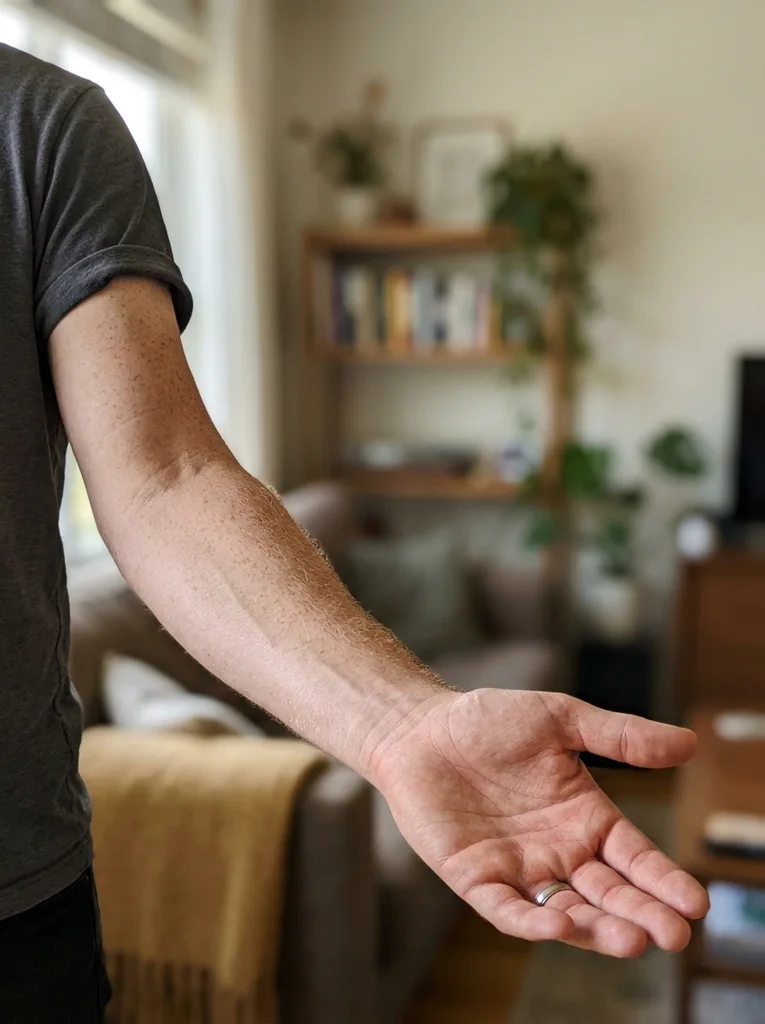
Drag the slider on each photo. One side is the photo that was uploaded, the other is the tattoo try on result, with the design kept exactly where it was placed.
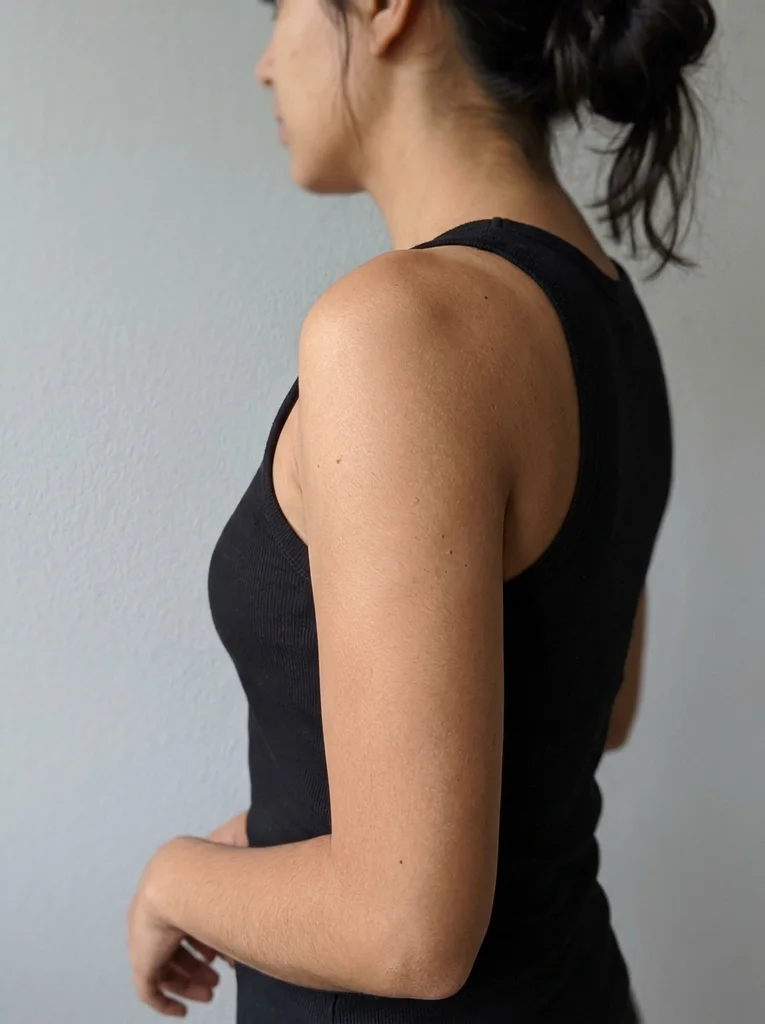
Traditional swallow, upper arm
Bold colour that still shows the skin texture underneath.
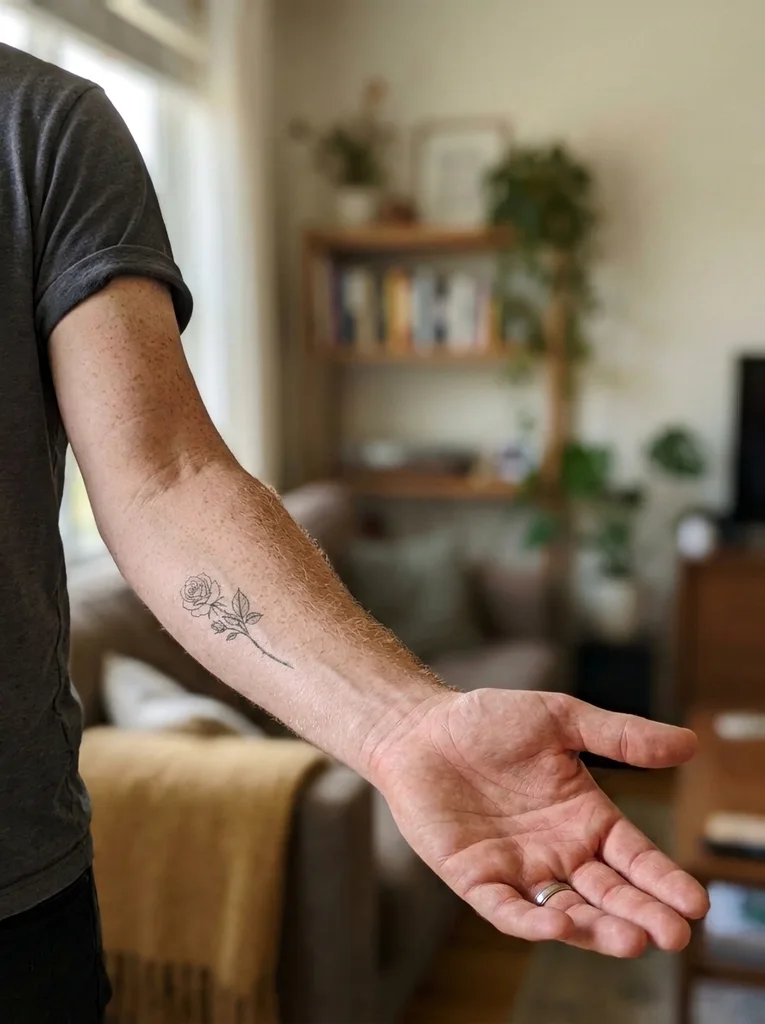
Fine-line rose, forearm
Thin single-needle lines bend with the arm.
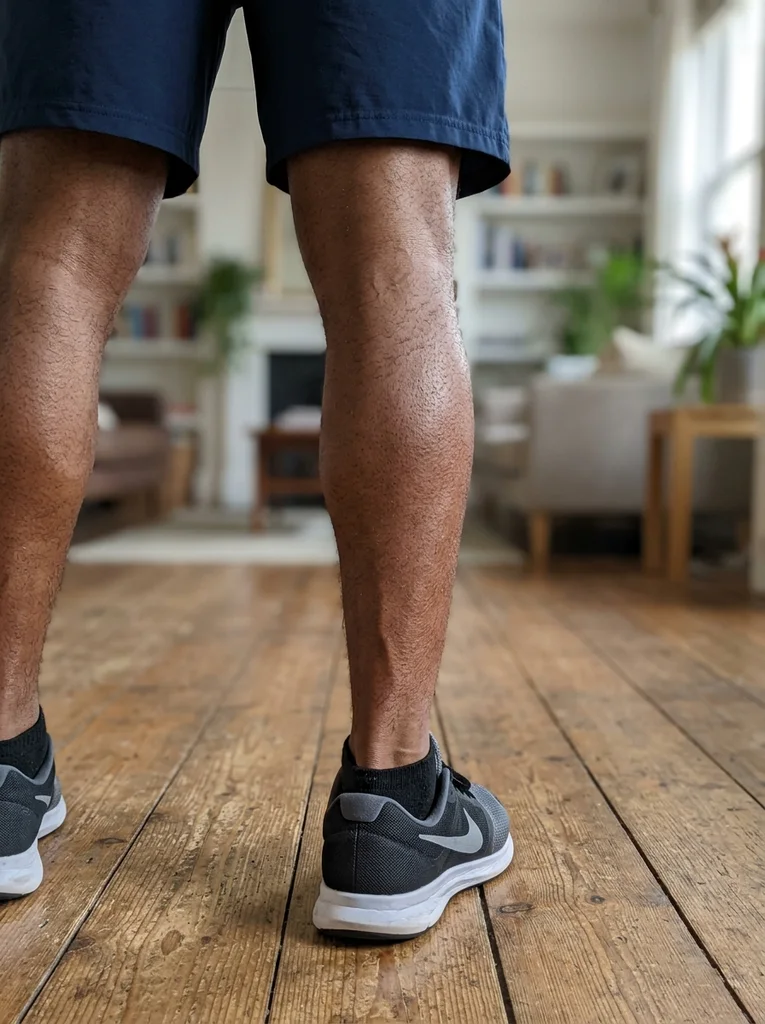
Blackwork mandala, calf
Wraps around the muscle and stops at the edge of the leg.
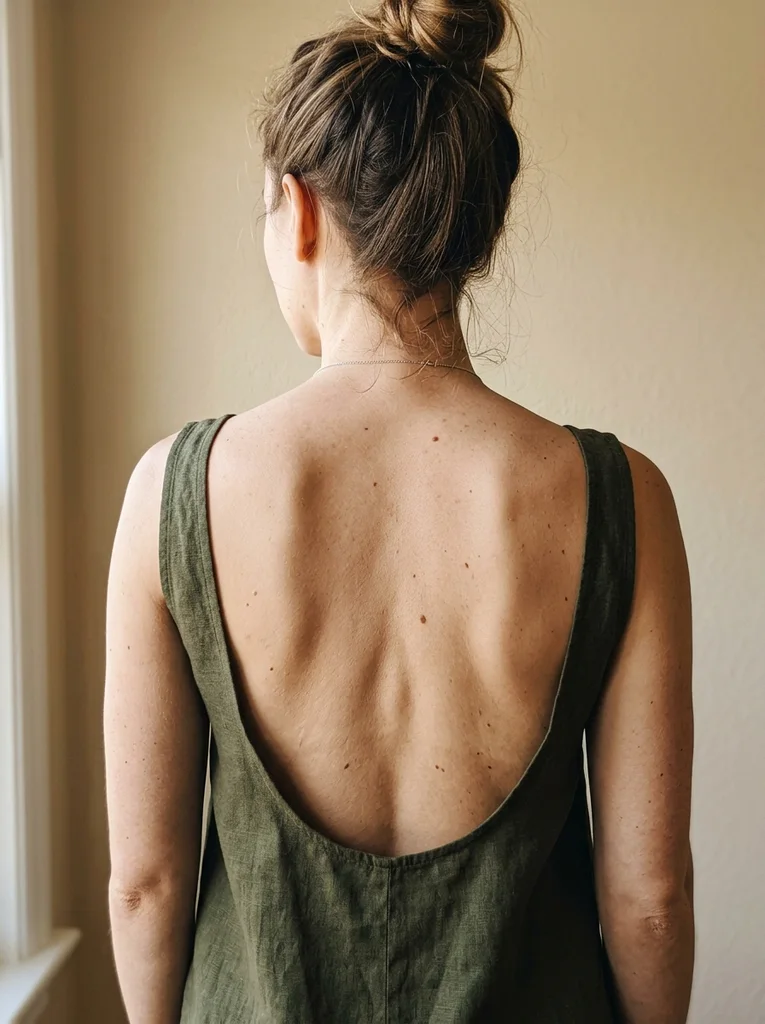
Fine-line rose, upper back
Sits in the skin with the moles and freckles left untouched.
How it works
Try On a Tattoo in Three Steps
Upload a photo of the spot
Take a photo of your forearm, shoulder, back, leg or wherever you are thinking of. Good light and a clear view of the skin matter more than the camera.
Pick a design and place it
Choose from the design library or upload your own artwork. Drag it into position, then resize and rotate it until it sits exactly where your artist would put it.
Make it look real
The AI turns the flat design into ink in your skin: it follows the curve of your body, picks up the light in your photo and lets your skin texture show through.
Why use it
A Tattoo Try On That Keeps the Placement You Chose
Most tattoo preview apps either paste a flat image on top of your photo or let the AI decide where the tattoo goes. Here you place it, and the AI only makes it real.
Your own body, not a model
A tattoo on a stock model tells you little. This tattoo try on works on your photo, with your skin tone, your shape and your existing marks.
You decide the placement
Position, size and angle are set by hand before anything is generated, and the result keeps them exactly. No guessing what "a medium rose on the forearm" means.
Bring your own design
Upload a sketch, a flash sheet or a drawing from your artist. A photo of a paper sketch works: the paper background is removed automatically.
Looks healed, not stuck on
Ink sits under the skin, pores and fine hair stay visible, and the design darkens in shadow like the skin around it. No sticker edges.
Free placement preview
Moving and sizing the design happens in your browser and costs nothing. Credits are only used when you ask for the realistic version.
Private by default
Your photos are used to make your result and nothing else. They are never added to a public gallery.
Free preview
Free Tattoo Simulator Preview or AI Render?
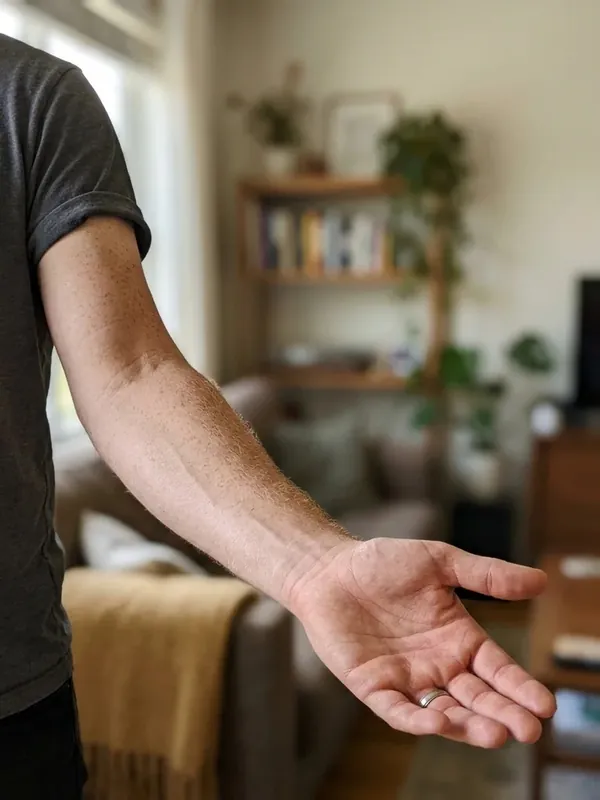
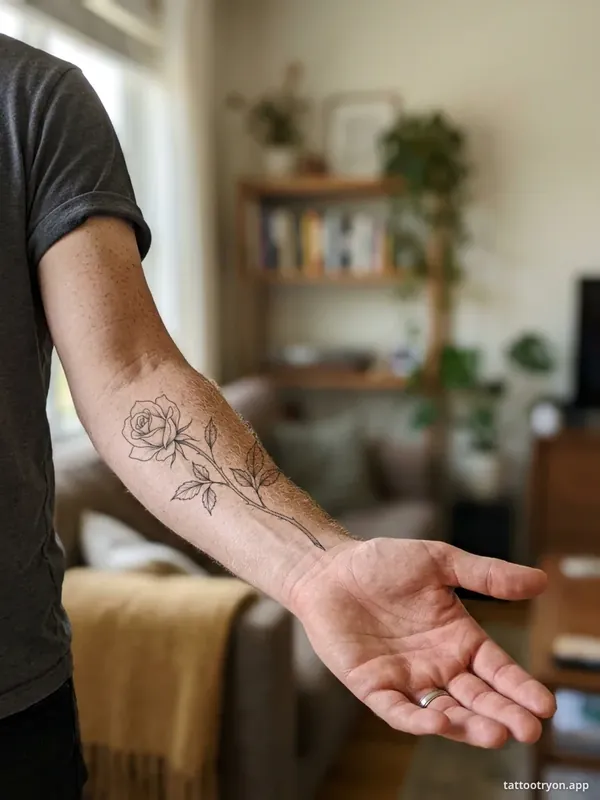
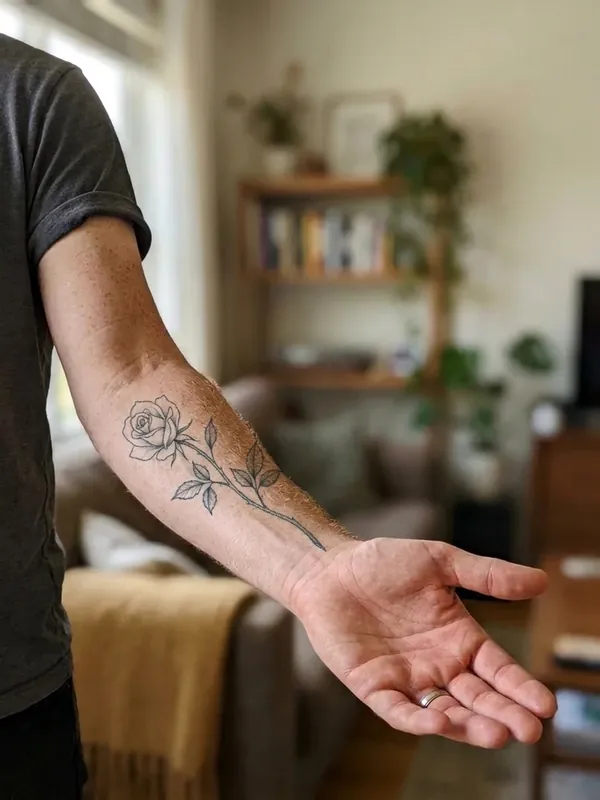
Same photo, same design, same placement. The preview is instant, free and needs no account: it shows the design on your bare skin, tucked under clothing and hair, so you can judge the spot and the size, and download it as a PNG. The AI render shows what the healed tattoo will look like in your skin.
By the numbers
Why Try a Tattoo On Before You Get It?
Tattoos are common, and so is changing your mind about one. Taking ink out is slow and not always complete, so it pays to see a design on your own body first.
32%
of U.S. adults have a tattoo, and 22% have more than one.
41%
of adults under 30 have at least one tattoo.
24%
of tattooed Americans say they regret getting one or more of their tattoos.
Source: Pew Research Center, survey of 8,480 U.S. adults, July 10 to 16, 2023.
“Laser tattoo removal requires multiple treatments with a few weeks in between procedures to give the skin time to heal. The length and number of treatments depends on several factors, including the size of the tattoo and the colors used. Complete removal of the tattoo can take many treatments, and in some cases may not be possible.”
A try on here costs 5 credits at 1K resolution, and a free account gets 5 credits every month, enough for one try on. The design stays at the position, size and angle you set, so you are judging your real placement before you book.
Design library
340 Tattoo Ideas Ready to Try On
Original designs in ten styles, from fine line to Japanese. Pick any of them to drop it straight into the tattoo try on above.
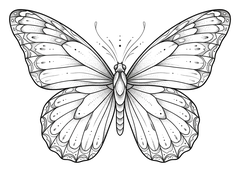 ButterflyFine lineTry on
 DragonMinimalistTry on
 RoseTraditionalTry on
 CrossNeo-traditionalTry on
 PhoenixBlackworkTry on
 EyeGeometricTry on
 SnakeJapaneseTry on
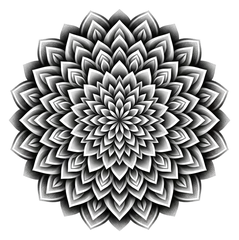 MandalaBlack & greyTry on
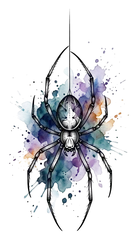 SpiderWatercolorTry on
 LionOrnamentalTry on
Tattoo ideas by motif
- Butterfly tattoos
- Dragon tattoos
- Rose tattoos
- Cross tattoos
- Phoenix tattoos
- Eye tattoos
- Snake tattoos
- Mandala tattoos
- Spider tattoos
- Lion tattoos
- Wolf tattoos
- Angel tattoos
- Koi fish tattoos
- Tiger tattoos
- Skull tattoos
- Sun tattoos
- Eagle tattoos
- Scorpion tattoos
- Moon tattoos
- Lotus tattoos
- Compass tattoos
- Heart tattoos
- Shark tattoos
- Owl tattoos
- Sunflower tattoos
- Hummingbird tattoos
- Cat tattoos
- Octopus tattoos
- Raven tattoos
- Elephant tattoos
Tattoo ideas by style
Placement guide
Where Should Your Tattoo Go?
Placement changes how a design reads as much as size does. Use the tattoo placement preview to compare spots before you book.
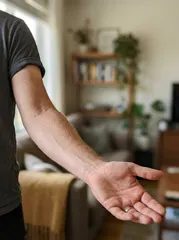
Forearm
The most popular first tattoo spot. Long designs that run along the arm suit the outer forearm; check how the design looks with your arm turned too.
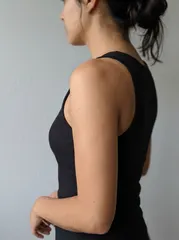
Upper arm and shoulder
Good for medium designs and classic traditional pieces. Easy to show or cover, and the curve of the shoulder flatters round compositions.
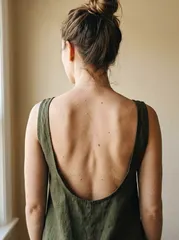
Back
The biggest canvas. A small piece at the top of the spine is subtle; a large piece across the shoulder blades needs a design built for the space.
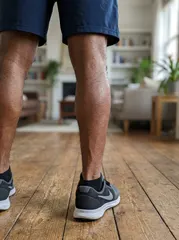
Calf
Round and muscular, so designs wrap visibly. Mandalas and animal pieces work well; try the design a little larger than you think.
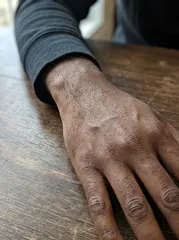
Wrist and hand
Small and always on show. Fine detail closes up over time here, so simple bold lines age better than tiny intricate work.
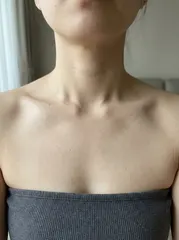
Collarbone
A favourite for fine-line script and small florals. Follow the line of the bone and keep the design narrow.
Explore more tools
FAQ
Tattoo Try On Questions
How does the tattoo try on work?
Upload a photo of the part of your body you want tattooed, choose a design from the library or upload your own, and drag it into place. When the placement looks right, the AI renders the design as a real healed tattoo in your skin, keeping the exact position and size you chose.
Is the tattoo try on free?
Placing, resizing and rotating a design on your photo is free and happens in your browser, and so is downloading that preview as a PNG, with no account needed. Turning it into a realistic tattoo costs 5 credits at 1K, and every signed-in account gets 5 free credits each month, enough for one try on.
Can I upload my own tattoo design?
Yes. Upload a PNG, JPG or a photo of a paper sketch. The background is removed automatically so only the ink is placed on your skin. Designs on a plain light background give the cleanest result.
Will the result look like a real tattoo?
The AI renders the ink under the skin rather than on top of it: skin texture, pores and fine hair stay visible, the design bends with the curve of your body, and it takes the same light and shadow as the skin around it. It shows a healed tattoo, not a fresh one.
Does it change anything else in my photo?
It is told to change only the tattoo and keep everything else as it is: your body, skin, clothing, jewellery and background. Occasionally a small detail right next to the design can shift, so compare the before and after with the slider.
Which body parts work best?
Any area that is clearly visible and in focus: forearm, upper arm, shoulder, back, calf, thigh, ankle, wrist, collarbone or ribs. Photograph the area straight on in good light, and keep it filling most of the frame.
How big should my tattoo be?
Drag the round corner handle, or pinch with two fingers on a phone, to try a few sizes on the same spot. Small designs read well on wrists and ankles; detailed pieces need more room, because fine lines spread a little as a tattoo ages.
Can I show the result to my tattoo artist?
Yes, that is one of the best uses for it. Download the image or share it, and use it to talk through size and placement before your appointment. Your artist will still adapt the design to your body.
Do you keep my photos?
Your photo and result are stored so you can see them in your history when signed in. They are never shown publicly or used for anything other than making your result.
Can it help me decide between designs?
Yes. Keep the same photo and placement, switch designs in the library, and render each one. Seeing two options on your own skin side by side is the fastest way to decide.